GitHub Guide (Command Line Interface)
Why Do we Use Github
- Efficient Version Management
- Can be thought as Ctrl +Z command in other softwares
- In team project, increase in participants results in increase in complexity of determining which version is final. Therefore, version management is essential
- Git is a source code version management system for easy time travel, Github provides project hosting spot. In other words, it is a cloud-drive system
- Majority
- By 2020, March, there are over 128 million public repositories GitHub’s Path to 128M Public Repositories
Registering Github
(Requires minimum english level :p) to register in Github Register
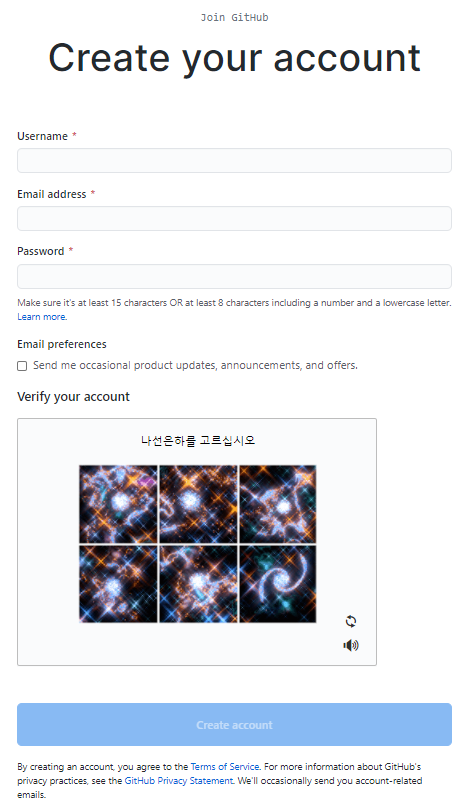
Installing Git, and managing commit in local computer (when working alone)
There is more than one possible program to use the Git source command. Some programs do not even require you to remember the code. These are GUI based.
I use Visual Studio Code and Github Desktop. However, when using remote-server (Linux hosted) It might be useful to learn these codes. In this chapter, we briefly go through the CLI (Command Line Interface).
For a really basic program, I recommend you to install Git. Of course, this is for Windows users. For others like Linux, Mac, Unix, ‘terminal’ is enough.
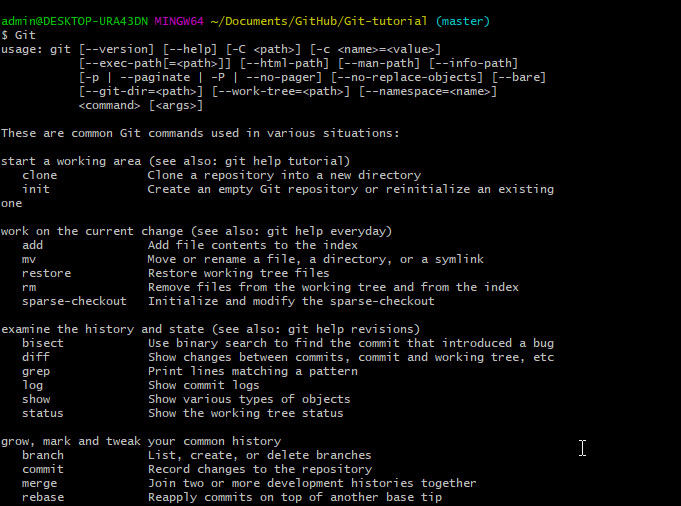
By typing “Git” on terminal or gitbash, if the following results are printed, Git is properly installed.
- - -
Creating Local Repository
Create a folder in any desired place. In my case it is:
C:\Users\admin\Documents\GitHub\Test
Create a text (.txt) file with random content
Open Gitbash and move to the directory (either directly or manually)
and type git init
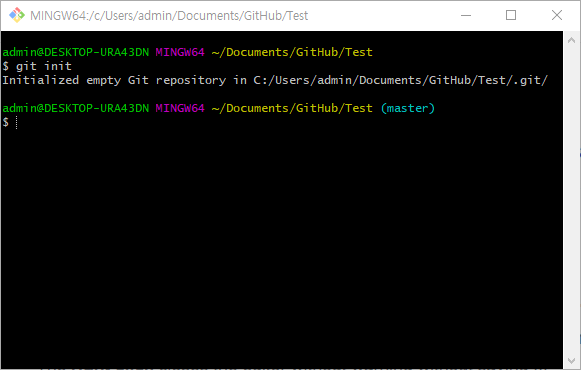
This command creates a .git folder in the directory (hidden) It stores the version’s information, remote address, etc.
Now we need to create the first commit, To manage the version, we must register our information beforehand. If working locally, these are unnecessary, but since we will use Github in the future, please type in the same account information as you registered in Github.com. This process is required only if you are first time using it.
git config --global user.email "your_email@gmail.com"

git config --global user.name "USERNAME"
Then choose a file you want to commit and type:
git add helloworld.txt

git commit -m "Description of Commit"
-m represents a message, if [1 file changed, 1 insertion (+)] is shown, commit succeeded
Try repating the same process with additional update, then output will be slightly different. For now you could also type
git add all
Then commit.
Going Back to the previous commit
Try multiple commits with change in file or adding different files before doing this step.
Typing git log helps you to visualize the history of commits
git log
value after the commit is the commitID
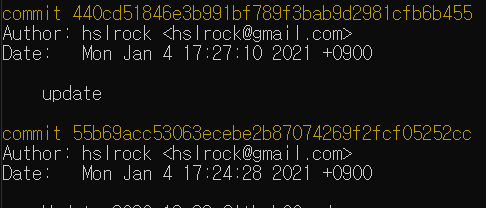
Typing git checkout CommitID makes you go back to previous commits (You don’t need to write the full commit number the first 7 characters of CommitID is also fine), In other words, contents can be resotred. In future chapter we will look in more detail what is ‘stash’, ‘commit’ and etc.
git checkout <Commit ID>
By typing git checkout - you will return to the most recent commit.
Commiting to the remote repository
Till now you managed the version locally. However, working with other people requires you to commit to the remote repository.
Login in Github.com and from the top navigation menu with + sign you can select to add “New Repository”
Ignore other things, for now, type in repository Name and continue to “Create repository”.
From now on you can access the remote repository from the following address.
https://github.com/<UserName>/<RepositoryName>.git
Now under your previously made directory, type git remote add origin youraddress in gitbash
git remote add origin https://github.com/<UserName>/<RepositoryName>.git
By using the push command, we can upload commits that were made in the previous step to the GitHub website, it could ask you to type in your Github account information
git push origin master
When you go back to your remote repository Github, you can now check your file is uploaded and also check the contents.
Downloading remote repository to local repository
This process is the opposite of the previous process.
Create a random folder to store the remote repository. Move to the directory in GitBash
Using git clone <link> . We can download/clone the files. ‘.’ makes it to directly download into the folder, Without ‘.’, it will create a folder with the repository name and download repository to the new folder
git clone https://github.com/<UserName>/<RepositoryName>.git
Now, what happens to the previous folder (the folder which was used in creating local repository/uploading to the remote repository) if you add new contents in this new folder and commit the new files with git push.
The previous folder will not know its change. To update the previous folder. You can go back to the directory of the previous folder in GitBash and type git pull origin master
git pull origin master
These were basic command for CLI